
Updated October 13, 2026
How to print name badges for a Wix event
Wix Events handles tickets, RSVPs and guest lists well, but it doesn't print name badges. If you run a workshop, class, networking night or conference on Wix and want every guest to walk in with a badge, you have two options: a free manual method that takes about 20 minutes, or an app that does it in a click. Both are below.
Option 1: The free manual method
- Export your guest list. In your Wix dashboard, go to Events, find your event, open Manage, and export the guest list (a CSV file). Wix exports every column, so you may want to delete the ones you don't need.
- Check the names. If your ticket form doesn't ask for each guest's own details, every ticket in an order carries the buyer's name. Before the event, open the event's Settings, edit the Registration form and choose a form for each ticket, so a group of four doesn't print four identical badges.
- Buy badge inserts. Standard 4 × 3 inch name badge inserts (such as Avery 5392, six per sheet) fit most clip and lanyard holders.
- Mail-merge the names. In Word or Google Docs, use the mail-merge or label tool: choose the badge template, point it at your CSV, and drop the first-name and last-name fields onto the template. Add a ticket-type field if you want VIP guests marked.
- Print a test page on plain paper first, hold it up against a badge sheet to check the alignment, then print the real ones. Print at 100% scale, not "fit to page".
This works, but you'll repeat it every time guests register late, and the badges won't scan, so you'll still check people in by hand against a list.
Option 2: The one-click way with Arrivals
Arrivals: Check-in & Badges is a Wix app that adds three pages to your dashboard:
- Badges & Tickets. Pick an event and a format (name badges, compact tickets, or drink and meal tickets), and print letter-size sheets. Every badge shows the guest's name and ticket type and carries a check-in QR code.
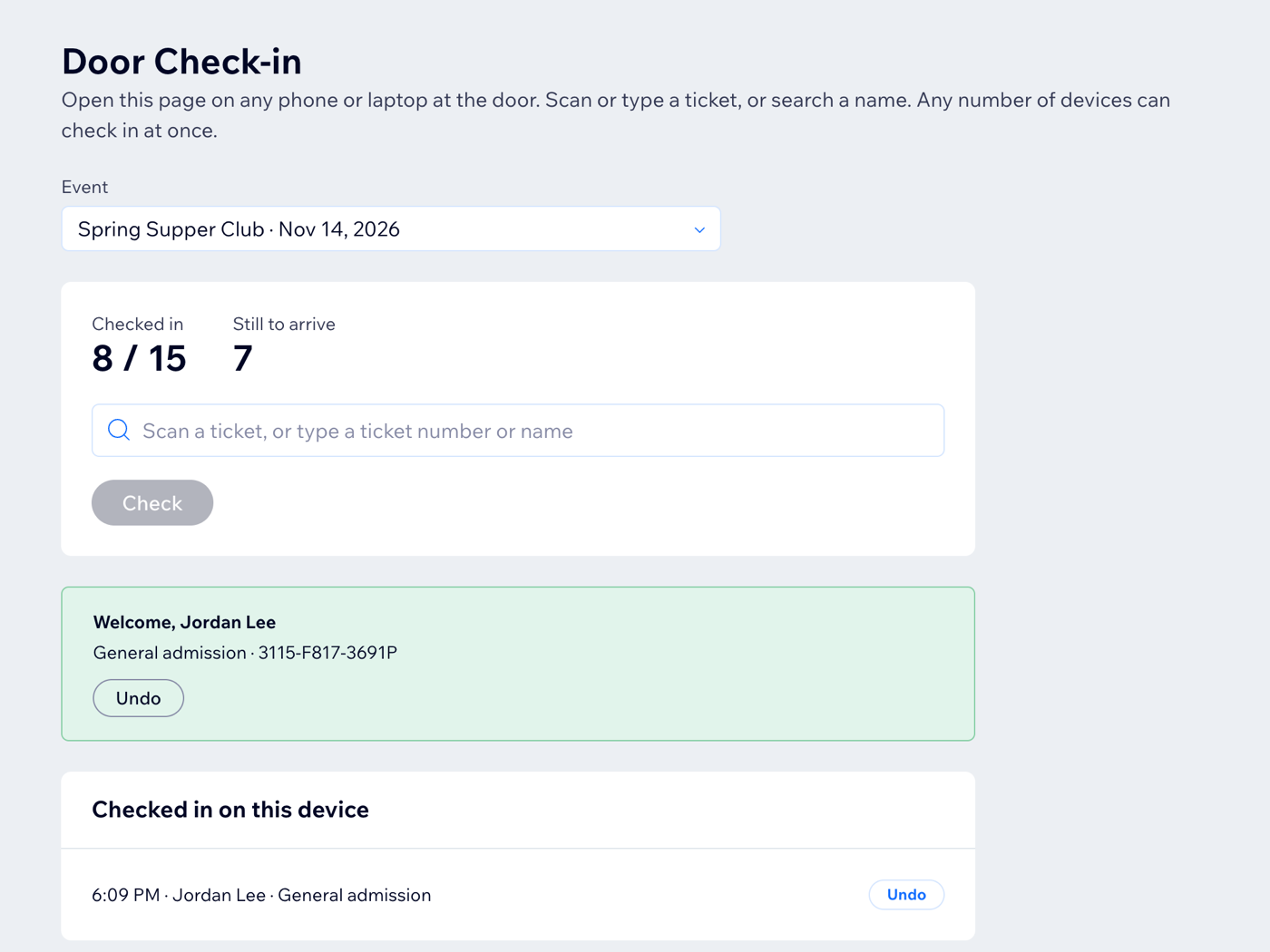
- Door Check-in. Open it on any phone or laptop. Scan a badge or ticket with a USB or Bluetooth scanner, type the ticket number, or search a name. It tells you at once whether the ticket is valid, already used, or not on the list. Switch on "Print a badge after each check-in" and each guest's badge prints the moment they are checked in, which suits late arrivals and last-minute changes.
- Guest List. One row per ticket, with search, arrival filters, bulk check-in and a spreadsheet export.
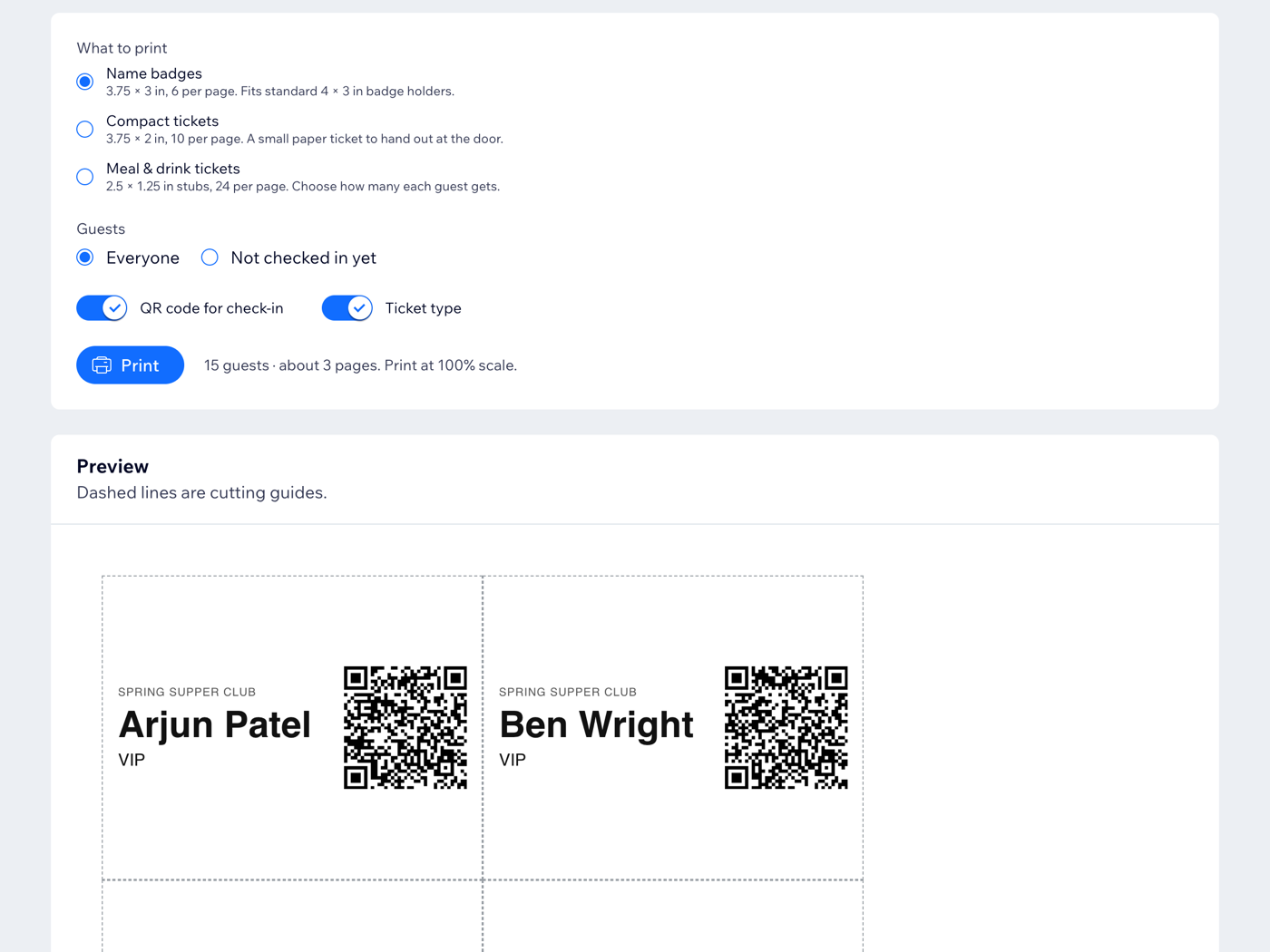
Guests whose names weren't collected get a "Guest of" label and a blank line to write the name in, instead of the same buyer name repeated.
Which should you use?
- One small event with a few dozen guests: the manual method is fine.
- Regular events, late registrations, or more than about 50 guests: the app saves a lot of time, and the QR codes make check-in faster.
Add Arrivals from the Wix App Market. It requires Wix Events & Tickets on your site and is free to install.
Questions
Does it work with RSVP events as well as ticketed ones? Yes, both. RSVP guests print and check in the same way.
Do guests see anything? No. Arrivals only appears in your own Wix dashboard.
Where is guest data stored? In your Wix account. The app has no servers of its own; see the privacy policy.
Arrivals is made by MW Products LLC, which also publishes Foodie Saga. Questions: mwproductsllc@outlook.com